- Published on
What is the blue dot at the top of your Android mobile
- Authors

- Name
- aimode.news
- @aimode_news
We are going to tell you what the blue dot is that will soon start appearing on the screen of your Android mobile. This is a new indicator similar to the green and orange dot that already appears on many devices, a privacy indicator that tells you when an app is accessing specific sensitive data on your mobile.
We are going to start the article by explaining what this blue dot on the mobile screen means, and the fact that it can appear or disappear from it. Then, we will tell you what you should do in the event that this point appears for no apparent reason, an indicator that an app could be doing something behind your back.
What does the blue dot on your phone's status bar mean?
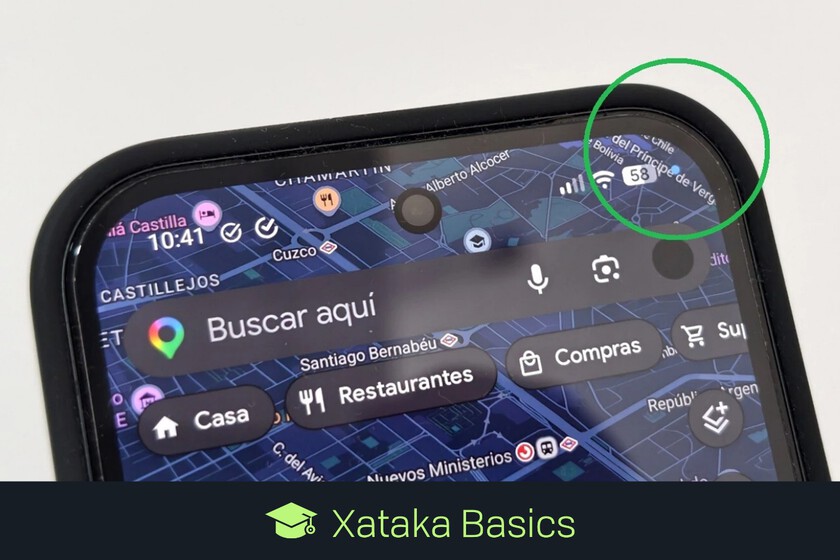
The blue dot in the status bar that appears at the top right of an Android mobile screen means that an application is accessing your location. Every time your phone is sending your location the dot will appear, and then it will disappear when it stops doing so.
This is a method with which your mobile phone tells you the exact moment in which the location permission is being used. The goal is that apps do not use your location without you knowing it, and that you can detect bad behavior in applications.
Therefore, with this three types of colored dots will appear on your mobile screen:
- Green dot: Indicates that an application is using your mobile camera.
- Orange dot: Indicates that an application is using your mobile microphone.
- Blue dot: Indicates that an application is using your mobile location.
Currently, this indicator has already begun to reach some Pixel phones from Google, such as the Google Pixel 10a. However, it is expected to become a standard indicator that will also soon begin to reach other Android phones from brands such as Samsung, Xiaomi, and others.
What to do if this point appears for no apparent reason
This blue indicator will appear whenever your phone is using location data. If it appears when you do not have an application open, it is because one is accessing them in the background.
If you see that your location is being used but you don't know what application it may be, it is best to check the access permissions to your location in the settings of your Android mobile.
To do this, go to Settings and go to the Privacy and security section. Once inside, click on Privacy Settings, and inside access the Permissions Manager section. This will take you to a list with all the permissions on your mobile, and you must click on the Location permission.
By doing this, you will go to a list where you will see all the apps that have permission to access your location, both those that do so at all times and those that can only access while you use them. Here, you can review which applications you are giving this access to, and you can revoke it from any that you consider should not have it.
Images | Noelia Hontoria
In Xataka Basics | 47 free and open source alternative Android applications that respect your privacy as much as possible